Post Social / Docs / Quickstart
Quickstart: your first post
You will connect one social account, connect Claude, ChatGPT or another AI agent, and ask your AI to post. It takes about ten minutes, and you don't need to write any code. Your first 2 accounts are free, with no card needed.
- Connect your first account
- Connect Claude, ChatGPT or any AI agent
- Send your first post
- Check that it went out
- If something fails
Step 1
Connect your first account
You connect your social accounts yourself. An AI can send you a link to do it, but it never signs in for you.
- Sign in to Post Social. If you don't have an account yet, create one from postsocial.xyz.
- Open Accounts and find Connect an account.
- Choose a platform: Instagram, Facebook Pages, Threads, YouTube, TikTok, LinkedIn, Bluesky or X.
- Sign in on that platform's own page and approve access. Post Social never sees your password.
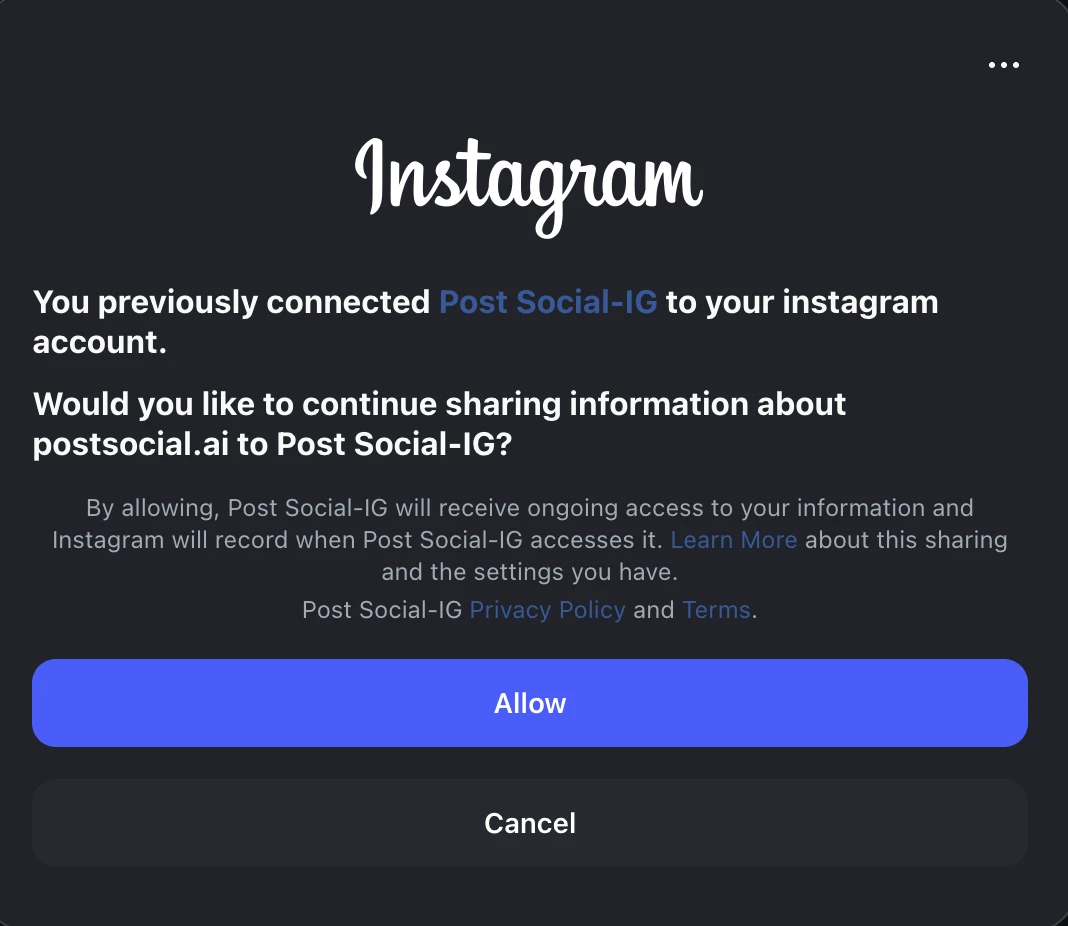
A few things to know:
- Instagram needs a Business or Creator account. Facebook connects Pages, so choose at least one Page when Facebook asks.
- Bluesky asks for your handle first, for example
name.bsky.social. - Your first 2 accounts are free. Connecting a 3rd needs a card; see pricing and billing.
When it works, the account shows as Connected on the Accounts page.
Step 2
Connect Claude, ChatGPT or any AI agent
Every AI app uses the same address: https://www.postsocial.xyz/mcp. You sign in to Post Social and approve the app, so there is no key to copy. Here is how in Claude and ChatGPT:
Claude
Settings → Connectors → Add custom connector. Name it Post Social and paste the address above. Claude opens Post Social; sign in and press Allow.
ChatGPT
Settings → Apps & Connectors → Advanced settings → turn on Developer mode. Then Create a connector with the address above and sign in when asked.
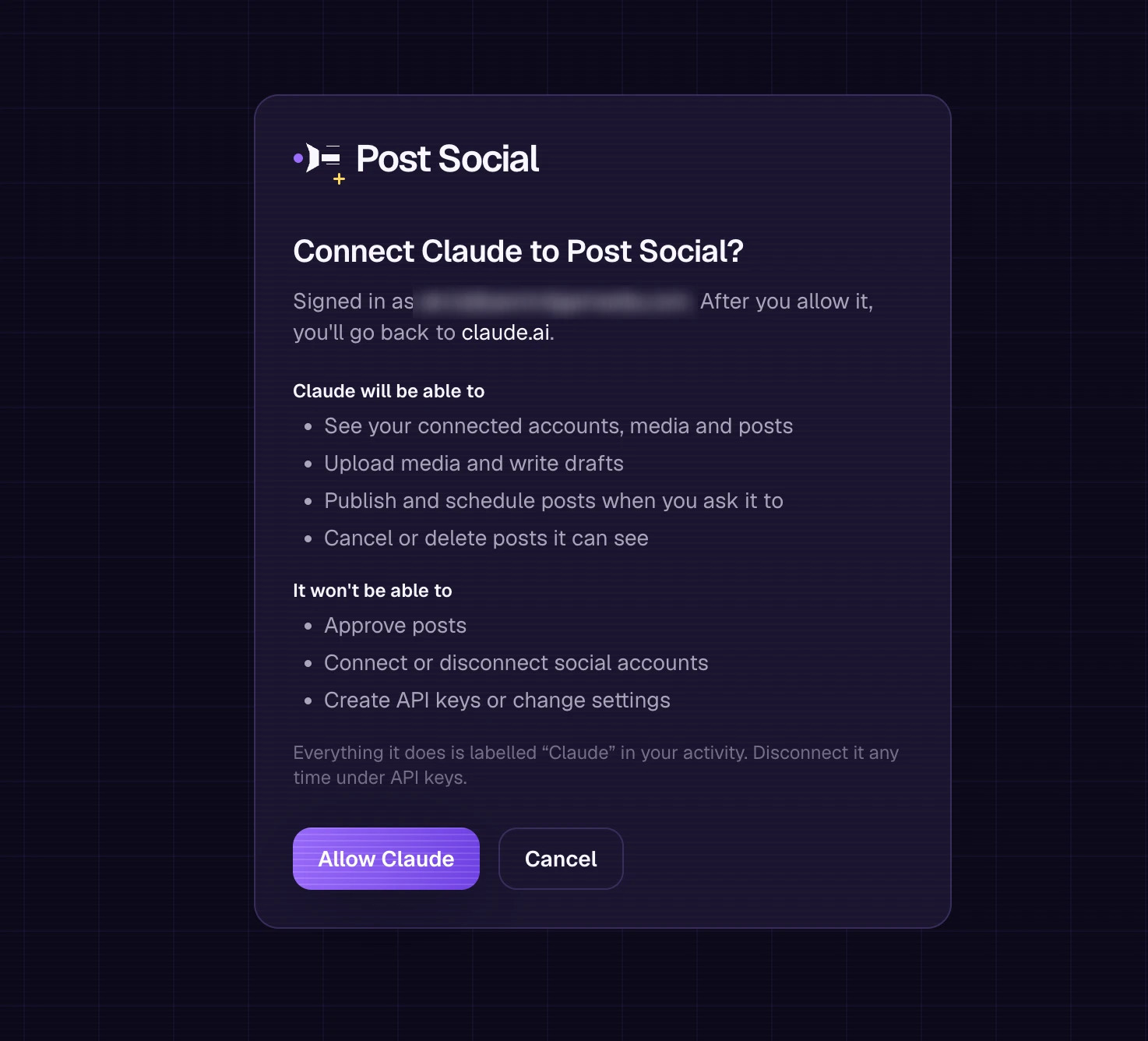
Using Claude Code, Codex, Cursor, Grok, Muse, Hermes, OpenClaw or another MCP app? See Connect an AI.
To check it worked, ask your AI: “Which social accounts do I have connected in Post Social?” It should list the account from step 1.
Step 3
Send your first post
Ask in plain language. For a first try, post text to an account that accepts text (Bluesky, X, Threads, LinkedIn or a Facebook Page):
Post “Hello from my AI” to my Bluesky account right now.
Your AI checks the post against that platform's rules, then sends it. To post later, give a date and time:
Schedule “New video this Friday” to my LinkedIn for tomorrow at 9am.

- Say when. A post goes out only when you ask for it now or give a time. If you give neither, your AI saves a draft and nothing is posted; ask it to send the draft when you're ready. Posts can be scheduled up to a year ahead.
- Photos and videos. Instagram, TikTok and YouTube posts need media. Give your AI a public https link to the file and it imports it into Post Social first.
- TikTok. Direct posts need you to say who can see the post. Or set the account to Inbox first on the Accounts page and each post lands in your TikTok inbox for you to finish.
- X. X posts are billed separately; see X posts in billing.
Step 4
Check that it went out
A post is live only when its results show published with a live link; in Post Social's calendar it shows as Live. Asking your AI to say it sent the post is not enough. Ask:
Show me the publishing results for that post.
For each account you will see one of these:
- Published, with a live link. Open the link to see the post on the platform.
- Failed, with the reason in plain language.
- Still in progress. Platforms take a short while to process media; check again in a minute.
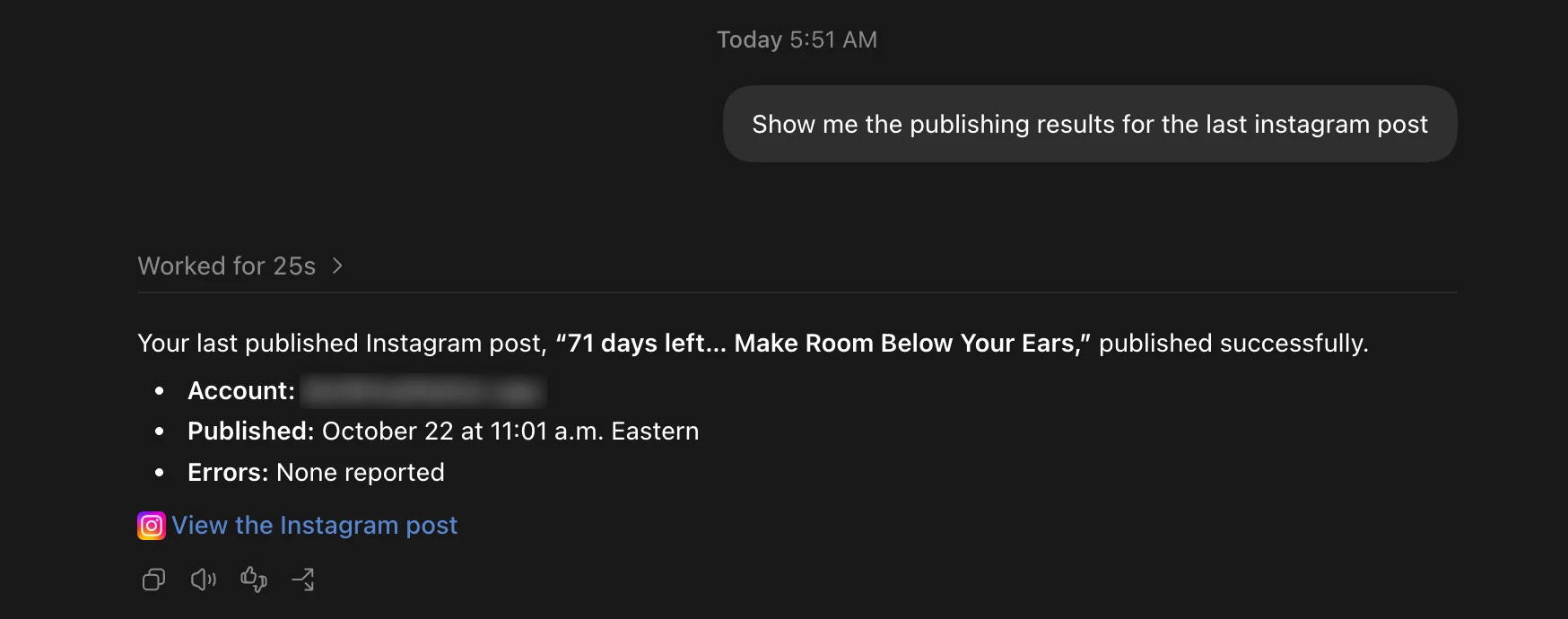
You can also see posts in Post Social itself: Drafts for saved drafts, Calendar for scheduled and sent posts (Scheduled, Publishing, Live, Partly live or Failed), and Logs for what your AI did.
Step 5
If something fails
Post Social explains each failure in plain words. Read the reason first, then try the matching fix:
- The account shows Needs attention. Access has expired or was removed. On the Accounts page choose Reconnect and sign in again.
- The post was saved as a draft. Either no time was given, or the post has a problem such as a caption that is too long or media that doesn't fit the platform. Your AI gets the exact problems back; ask it to fix them and send the post again.
- “Test keys cannot publish.” A test API key can do everything except publish. Create a live key on the Connect your AI page instead.
- A TikTok account refuses a direct post. The account is set to Inbox first. Ask for an inbox post, or change the setting on the Accounts page.
- X posts stopped. You have reached your monthly X cap. See X posts in billing.
- Too many requests. You have hit a rate limit. Wait a little while and try again.
If the reason says it isn't something you can fix, it will point you to support@postsocial.xyz.